

 Skip to content
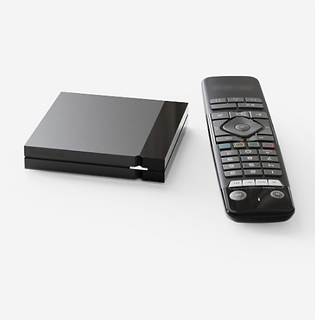
Android TV boxes and many smart TVs run Android-based software, which makes them a flexible way to watch IPTV. The exact screens differ between brands, but the overall process is the same. This guide covers the general steps to set up an IPTV player app on an Android TV device or smart TV, plus fixes for the most common problems.
Open the Google Play Store on your Android TV, search for an IPTV player app that your provider supports, and install it. If your provider recommends a particular app, use that one. Some dedicated boxes, such as the S10 Pro, come with their own player software already built in, so you may not need to install anything.
Launch the app and look for an option such as Add playlist, Add portal or Login. Enter the details your provider gave you exactly as written. Small typing mistakes, extra spaces and mixed-up letters are the most common reason a setup fails, so double-check each field.
The first load can take a minute or two while the app downloads your channel list and program guide. Stay on the screen until it finishes. If it seems stuck, back out and try again rather than restarting repeatedly.
Try a live channel, a sports channel and an on-demand title to confirm everything plays. If one channel misbehaves while others work, note its name for support.
Some TVs use their own system instead of Android. In that case, look in the TV’s app store for a supported player app. If your TV does not offer one, a low-cost streaming device plugged into the HDMI port is a reliable alternative. Our Firestick guide covers one popular option, and you can compare boxes and remotes in the shop.
A good remote makes browsing channels far easier. The STV-BT1 Bluetooth voice remote supports voice commands and can be programmed with infrared controls for your TV and other devices.
Want to get started? See IPTV plans for Android TV and Smart TVs.
Use the app your provider recommends. If you are not sure, ask through the contact page.
Typing errors in the login details are the most common cause. Re-enter them carefully and make sure the device has a working internet connection.
No, Wi-Fi works for many homes, but a cable is usually steadier, especially for live sports and 4K.
Once your device is ready, see the 1 month, 6 month and 12 month plans. Playback quality always depends partly on your own internet and equipment.
 Optimized by Seraphinite Accelerator